1:25 AM Unknown
With vCenter, cloning and moving a VM from a host to a different host is really easy. It just takes a few clicks and then everything is done. Copying a VM from a host to different host without vCenter, however, is a bit more challenging. Belows are steps to copy a VM to different host without vCenter.
1. Locate where your source VM is on the host:
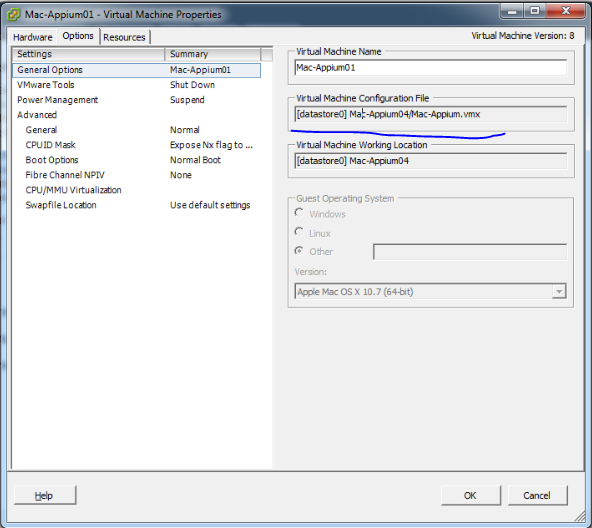
- Login VMware vSphere Client on your host --> right click to the VM you want to locate --> Edit Setting --> Select Options tab
- Note down the path of Virtual Machine Configuration File. In this case, it is [datastore0] Mac-Appium04/Mac-Appium.vmx.
- SSH to the host, the VM location is
/vmfs/volumes/datastore0/Mac-Appium04 (
datastore0/Mac-Appium04 is what we refer from the path of Virtual Machine Configuration File and
/vmfs/volumes/ is where ESXi puts VMs by default)
2. Copy the VM folder to the different host with scp command:
scp -r robin@10.10.2.20:/vmfs/volumes/datastore0/Mac-Appium04 /vmfs/volumes/datastore/
Note:
robin is the username to ssh to the host. /vmfs/volumes/datastore/ is where I want to put VM on the destination host.
3. Add the VM on VMware vSphere Client
- Login the destination host using vSphere Client
- Open datastore browser
- Find the VM, right click on the .vmx file and select 'Add to Inventory'
- Once you finish above steps, the VM is shown in vSphere client